arf.io / ARF / Terminal UI
ARF · Terminal UI

The watchdog
has eyes.

11 screens. Live agent output. Governance decisions in real time. Diff viewer, audit chain, traffic monitor, branch manager. Everything that's happening — in a terminal, the way it should be.

Launching the TUI

Start the proxy.
Open the dashboard.

The TUI requires the ARF proxy to be running. Start both with two commands, or run them together.

# Start proxy in background, then open TUI arf start --background arf tui # Or start everything together arf start # Demo mode: runs with synthetic data, no proxy needed ARF_TUI_DEMO=1 arf tui arf tui --demo

Demo mode runs the TUI with synthetic traffic and governance events. Useful for exploring the interface before connecting real agents.

Navigation: Use Ctrl+Right / Ctrl+Left to cycle through screens. Press a number key (1–9) to jump directly. Press F1 at any time to open the navigation menu.

The 11 Screens

Every view.
Every detail.

Screen 1 · H
Home

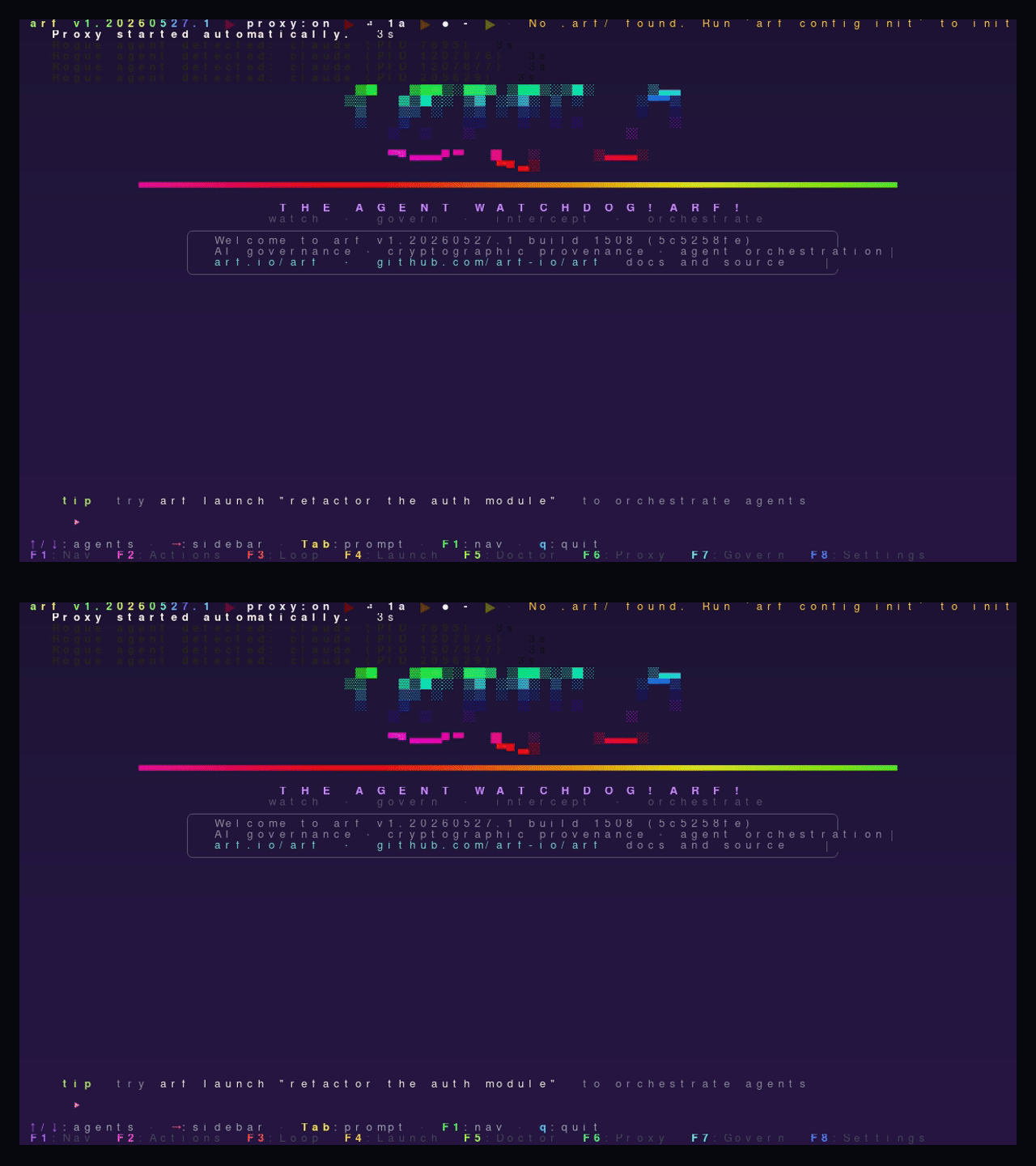
The splash screen. Shows the ARF version, proxy status, connected agent count, and the UIA prompt. This is where you start an orchestrated session: type a task for the User Interfacing Agent and press Enter.

The home screen shows you whether the proxy is running, how many agents are active, and the current governance profile. From here you can navigate to any other screen or launch a new agent session.
Key bindings
Enter Submit UIA prompt
Tab Focus prompt input
F4 Open launch modal
ARF TUI Home screen
Screen 2 · N
Agent View

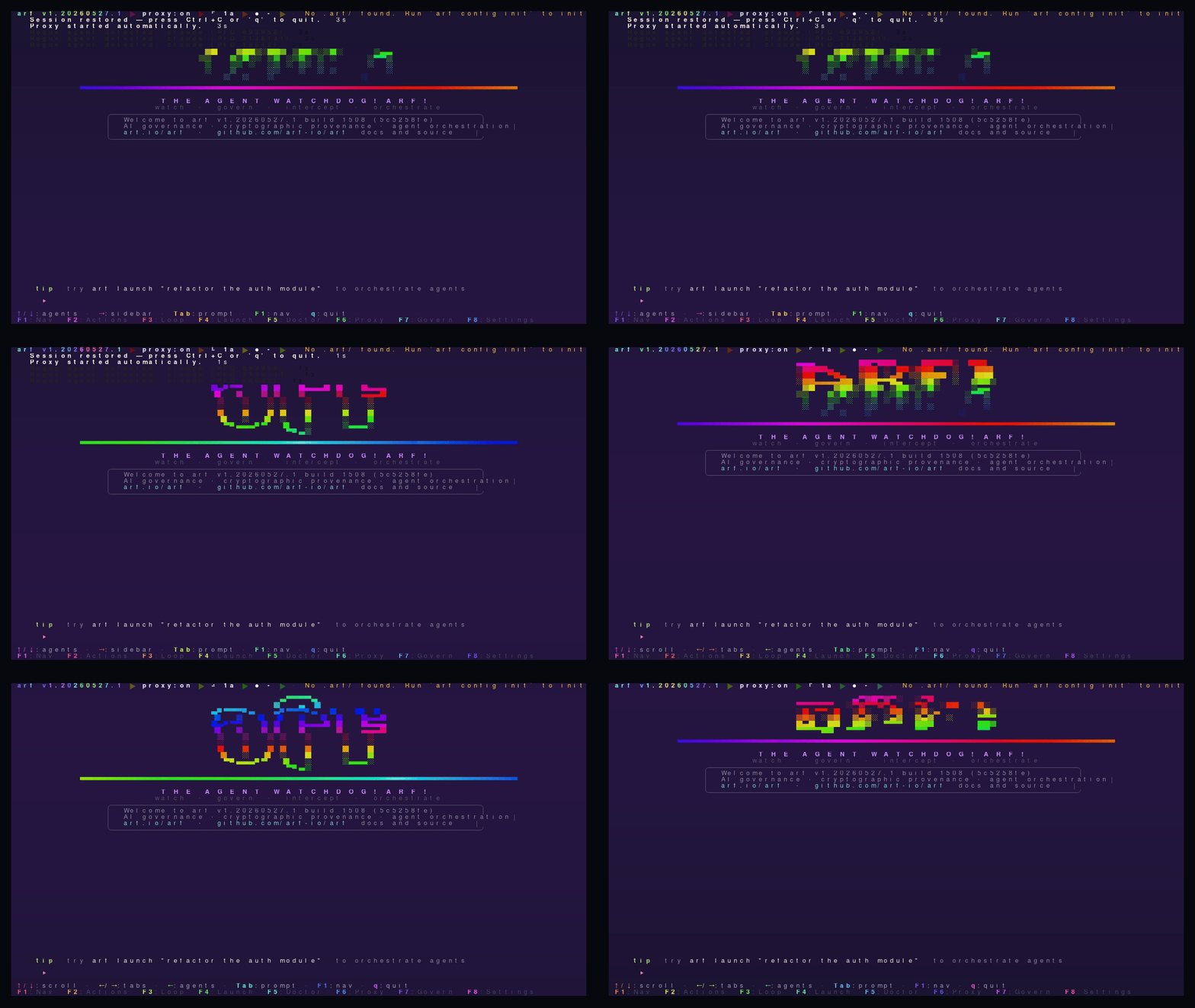
Live streaming output from every active agent. Sessions panel on the left shows all running and completed sessions with their health grade, token count, and status. Select a session to stream its output in the main pane.

The launch pane shows discovered models across all configured runners and backends. You can start a new agent session directly from this screen by selecting a model and entering a prompt.
Key bindings
Select session
Open session sidebar
Tab Switch to prompt input
Alt+R Resume previous sessions
Alt+K Kill all running agents
Alt+T View toast history
ARF TUI Agent View screen
Screen 3 · R
Rules

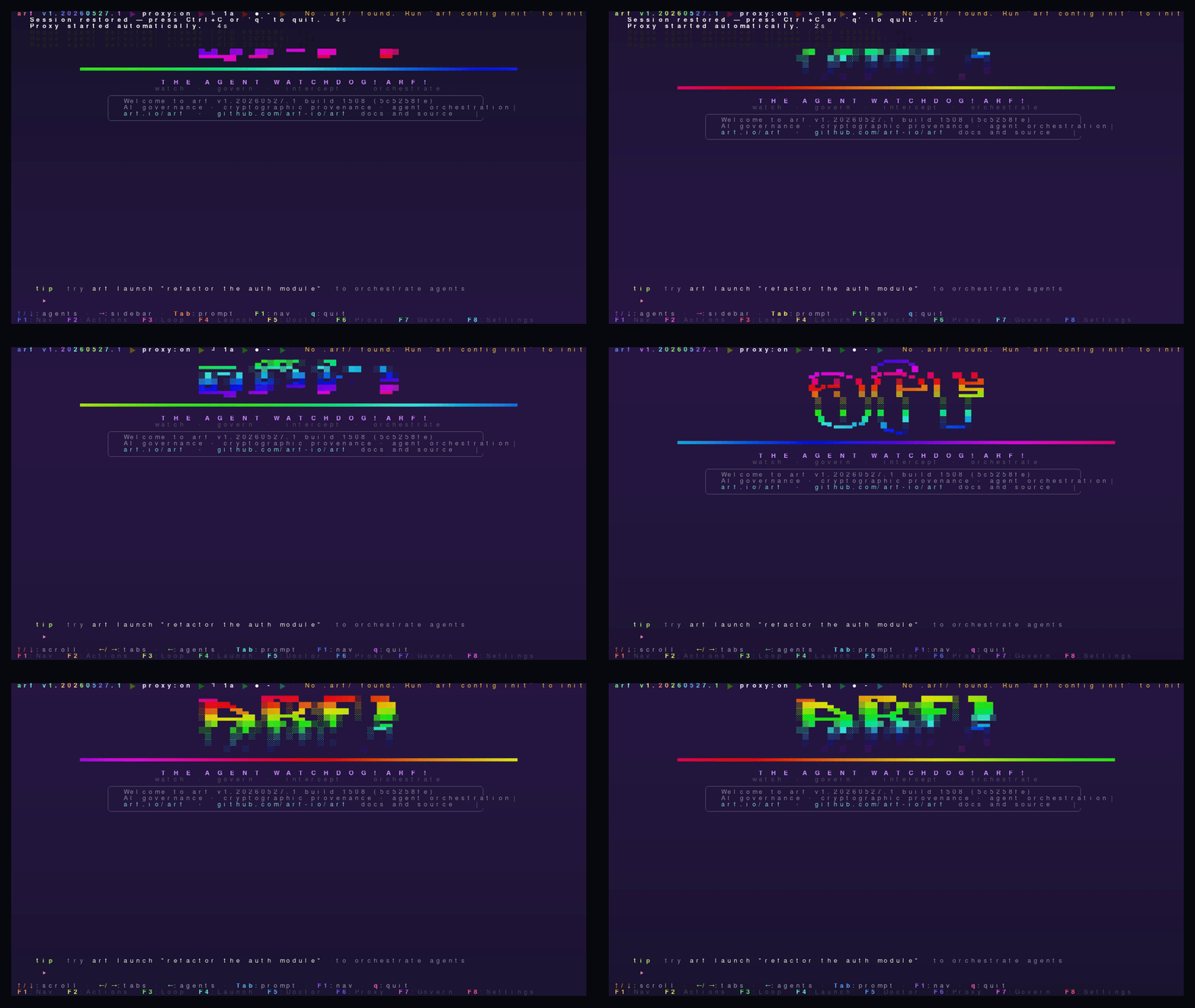
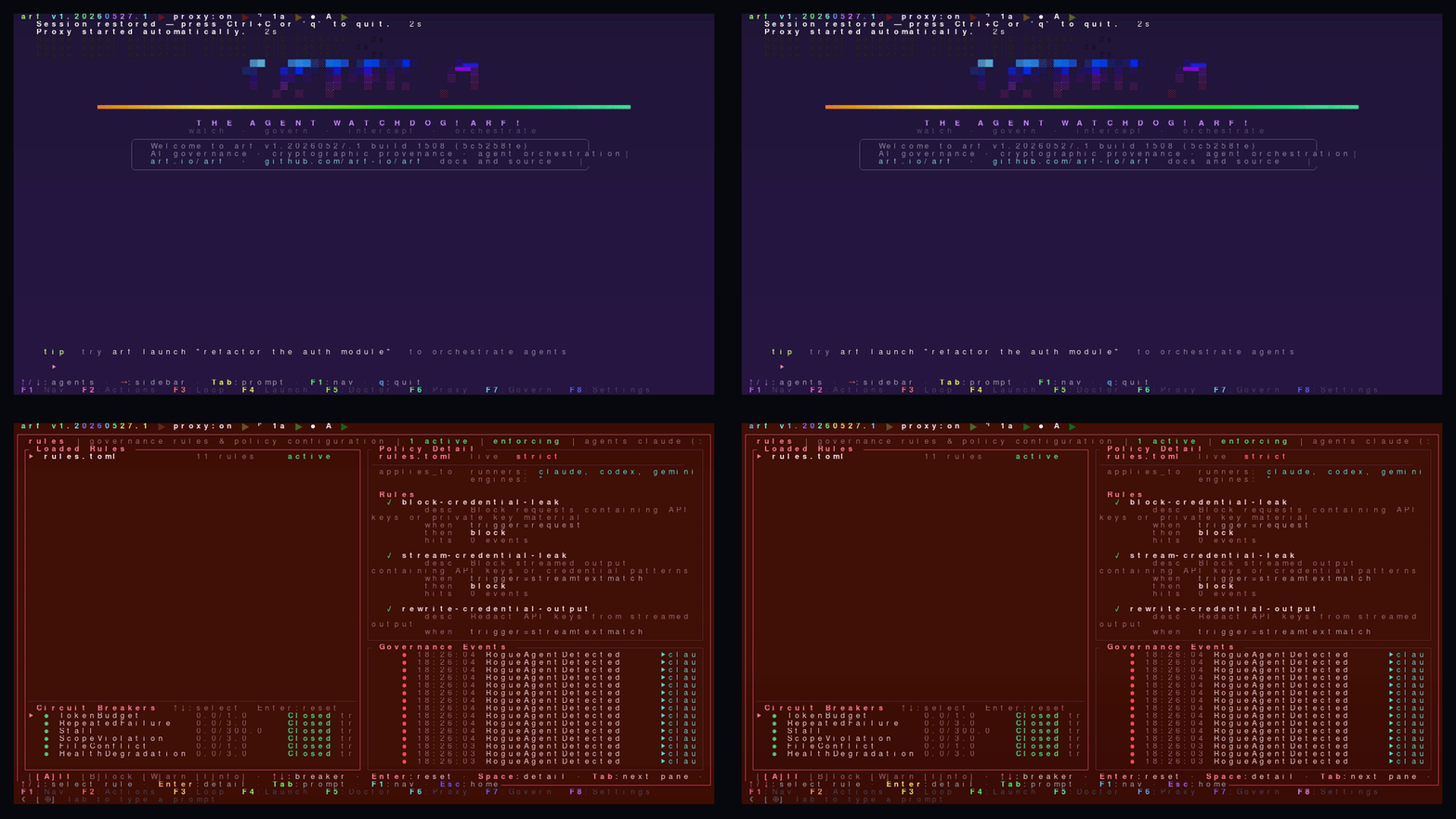
Live governance rule list. Shows every active rule with its name, action (block/warn/rewrite/modify), trigger type, and last-matched timestamp. Select a rule to see its full condition, pattern list, and OWASP risk tags.

The circuit breaker status panel shows the state (CLOSED/OPEN/HALF-OPEN) and trip threshold for each breaker. You can reset a tripped breaker directly from this screen without restarting the proxy.

Filter rules by action type: press A for all, B for block-only, W for warn-only, I for info-only.
Key bindings
Navigate rules / circuit breakers
Enter Reset tripped circuit breaker
Space Rule detail view
A B W I Filter by action type
ARF TUI Rules screen
Screen 4 · E
Audit

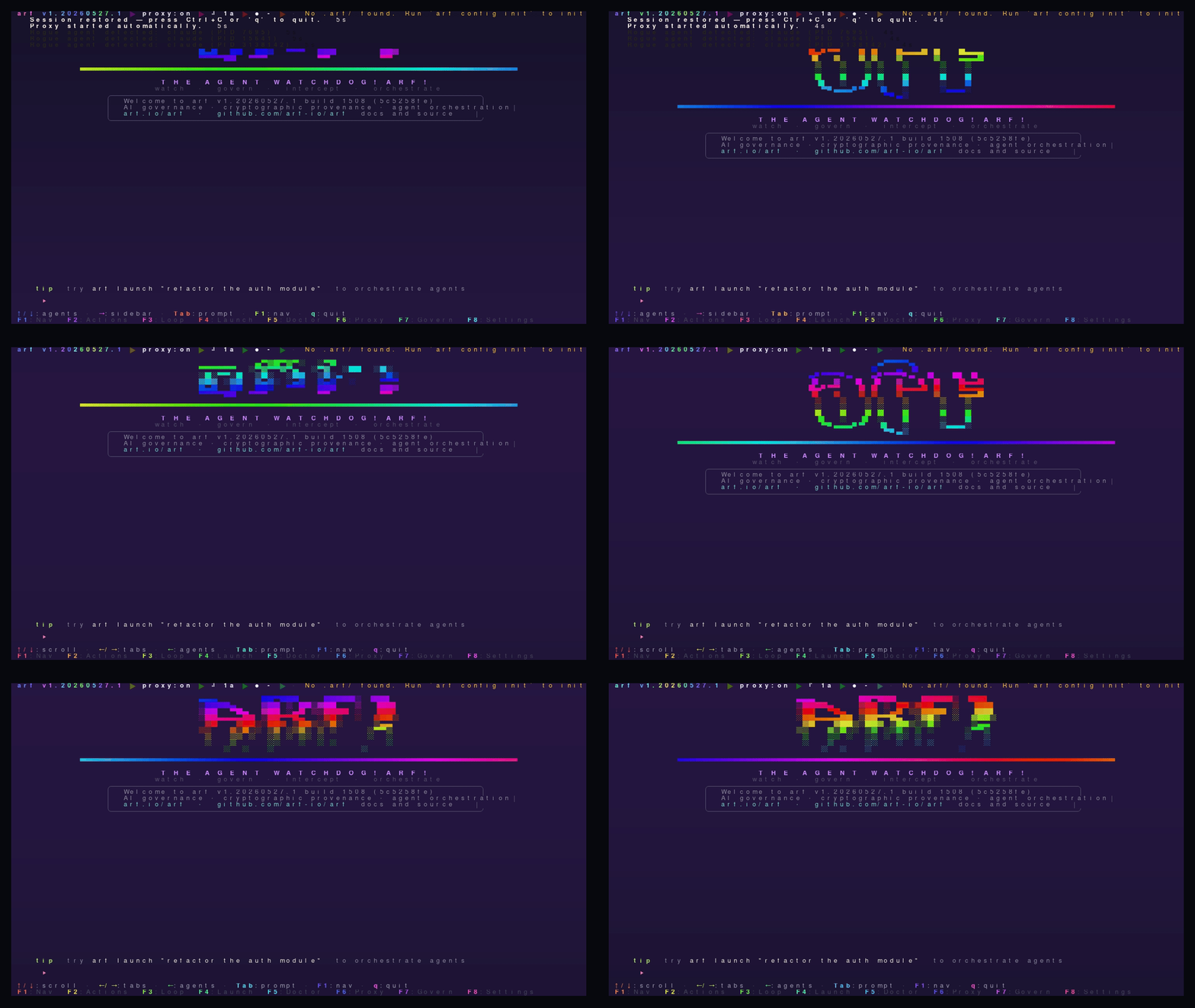
The provenance chain and Merkle DAG viewer. Shows every event in the current session: requests, responses, governance decisions, approvals, circuit breaker state changes. Each event is signed and hash-chained.

Navigate the DAG with arrow keys. Press Enter on an event to expand its full record including Ed25519 signature, parent hash, and serialized payload. Press e to export a compliance bundle.

Filter events by type using f: all, governance, proxy, agent, git, vault, evidence, deny, uia. Search with /.
Key bindings
Navigate DAG
Scroll event list
Enter Expand event detail
f Cycle filter
/ Search events
e Export compliance bundle
ARF TUI Audit screen
Screen 5 · D
Diff

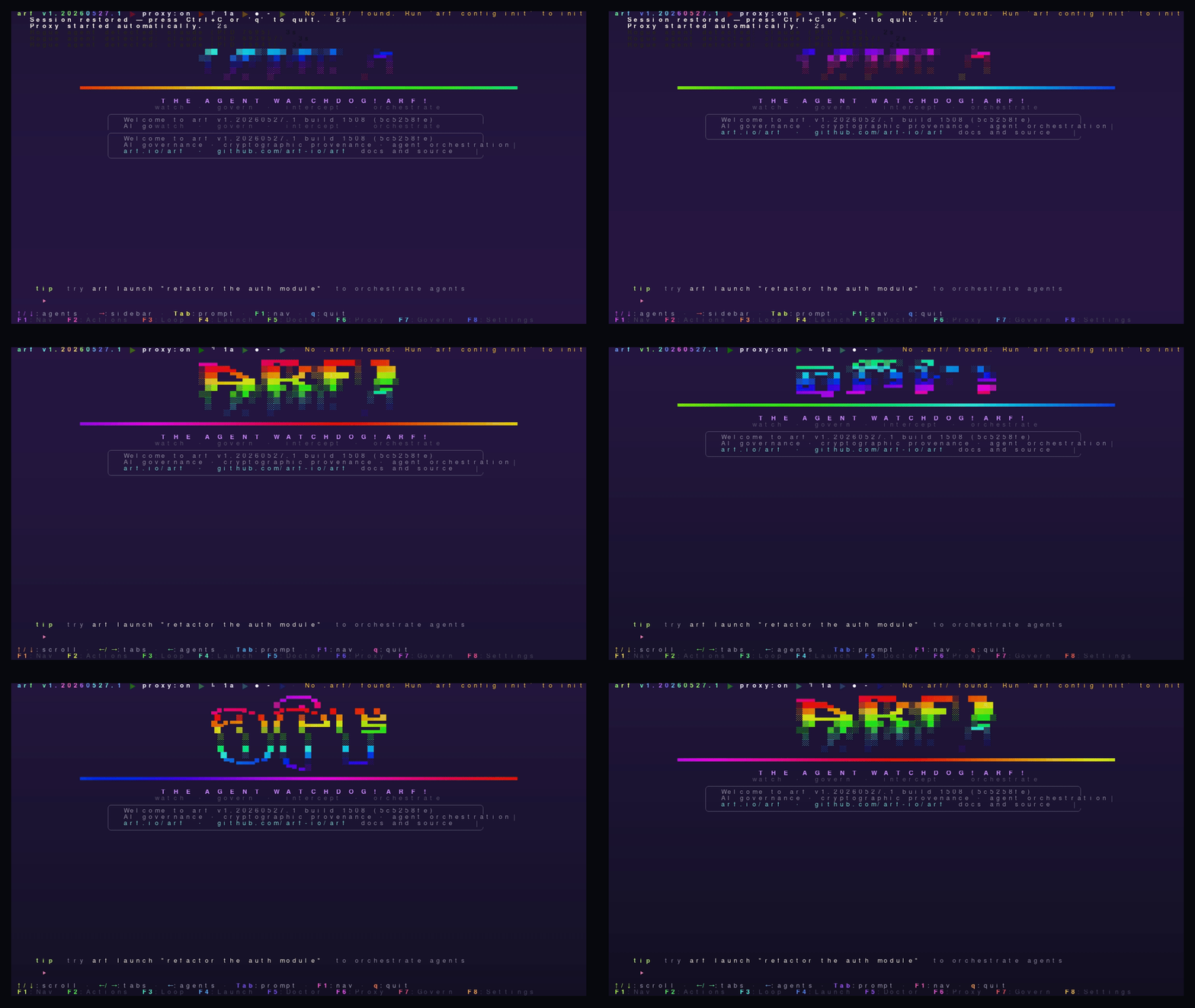
File diff viewer tied to the audit chain. Shows what the agent actually changed, linked to the provenance record that approved the write. Additions in green, deletions in red, context lines dimmed.

Each diff pane shows the filename, the audit record number, and who approved the change (or that it was auto-approved under policy). Navigate hunks with n/p and files with ]/[.
Key bindings
np Next / previous hunk
][ Next / previous file
Scroll
Esc Close
ARF TUI Diff viewer screen
Screen 6 · B
Branches

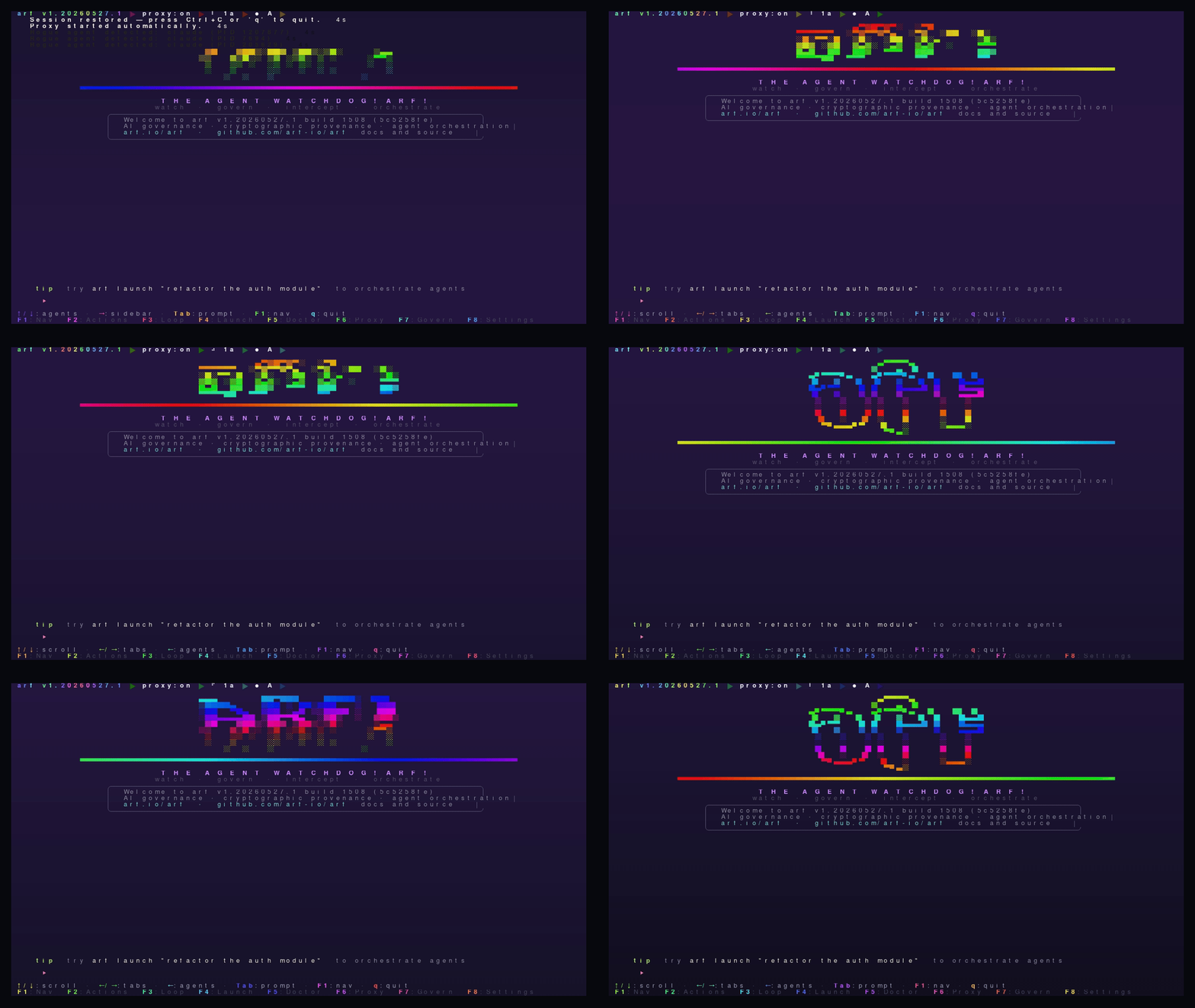
Git worktree and branch manager. Shows all active worktrees, which agent is working in each one, the current branch, and last commit. Create new worktrees, switch branches, or initiate a fan-in merge directly from this screen.

When multiple agents are running parallel tasks in separate worktrees, this screen shows the concurrent work graph: which branches are active, which are complete, which have merge conflicts pending resolution.
Key bindings
Enter Open branch detail overlay
n New worktree
m Initiate fan-in merge
d Delete worktree
ARF TUI Branches screen
Screen 7 · T
Traffic Monitor

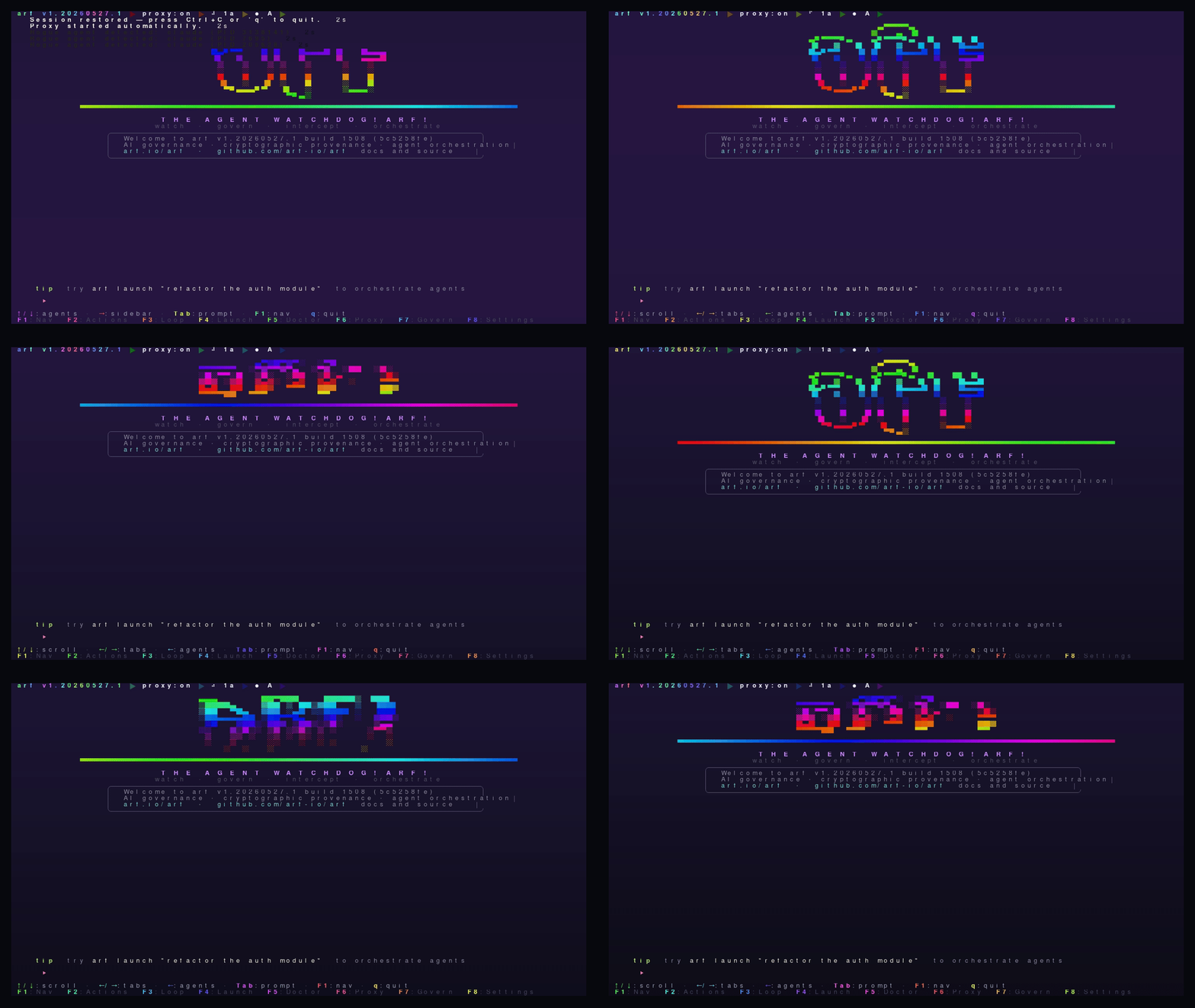
Live proxy request stream. Every HTTP request and response that flows through the ARF proxy, in real time. See the endpoint, method, response code, latency, token count, and which agent sent the request.

Filter by provider: a for Anthropic, o for OpenAI, g for Gemini. Search request bodies with /. Select a request to view its full payload including headers and body.
Key bindings
aog Filter by provider
/ Search
Enter Expand request detail
f Cycle filter
e Export traffic log
ARF TUI Traffic Monitor screen
Screen 8 · W
WorkGraph

Task dependency DAG for multi-agent orchestration. Shows the current work graph: nodes are tasks, edges are dependencies. Color-coded by status: queued (dim), running (copper), done (green), failed (red).

Navigate DAG
Enter Task detail
Screen 9 · A
Activity

Live governance event feed. Every governance decision as it happens: EVAL, HOLD, APPROVED, DENIED, CIRCUIT_TRIP. Filterable by event type. Useful for watching policy enforcement in real time without the full traffic view.

f Cycle filter
Enter Event detail
Screen 10 · S
Settings

Configuration editor. Proxy address, governance profile, runner defaults, appearance (colors, layout). Changes apply immediately without restarting. Edits are written back to .arf/config.toml.

Tab Navigate fields
Enter Edit / save field
Screen 11 · P
Plugins

Plugin registry. Shows installed ARF plugins, their version and status, and available plugins from the registry. Plugins extend governance rules, add new runners, and add custom audit reporters.
Enter Plugin detail / install
u Update all plugins
Overlays

Context on demand.
Without losing your place.

Overlays appear on top of any screen. They show contextual detail without navigating away. Press Esc to dismiss and return to the underlying screen.

ARF TUI Governance Detail overlay Governance Detail Overlay

Full detail for a governance event: the rule that matched, the message content that triggered it, the decision made, the approver identity, and the hash of the resulting provenance record. Press Enter on any governance event to open this.

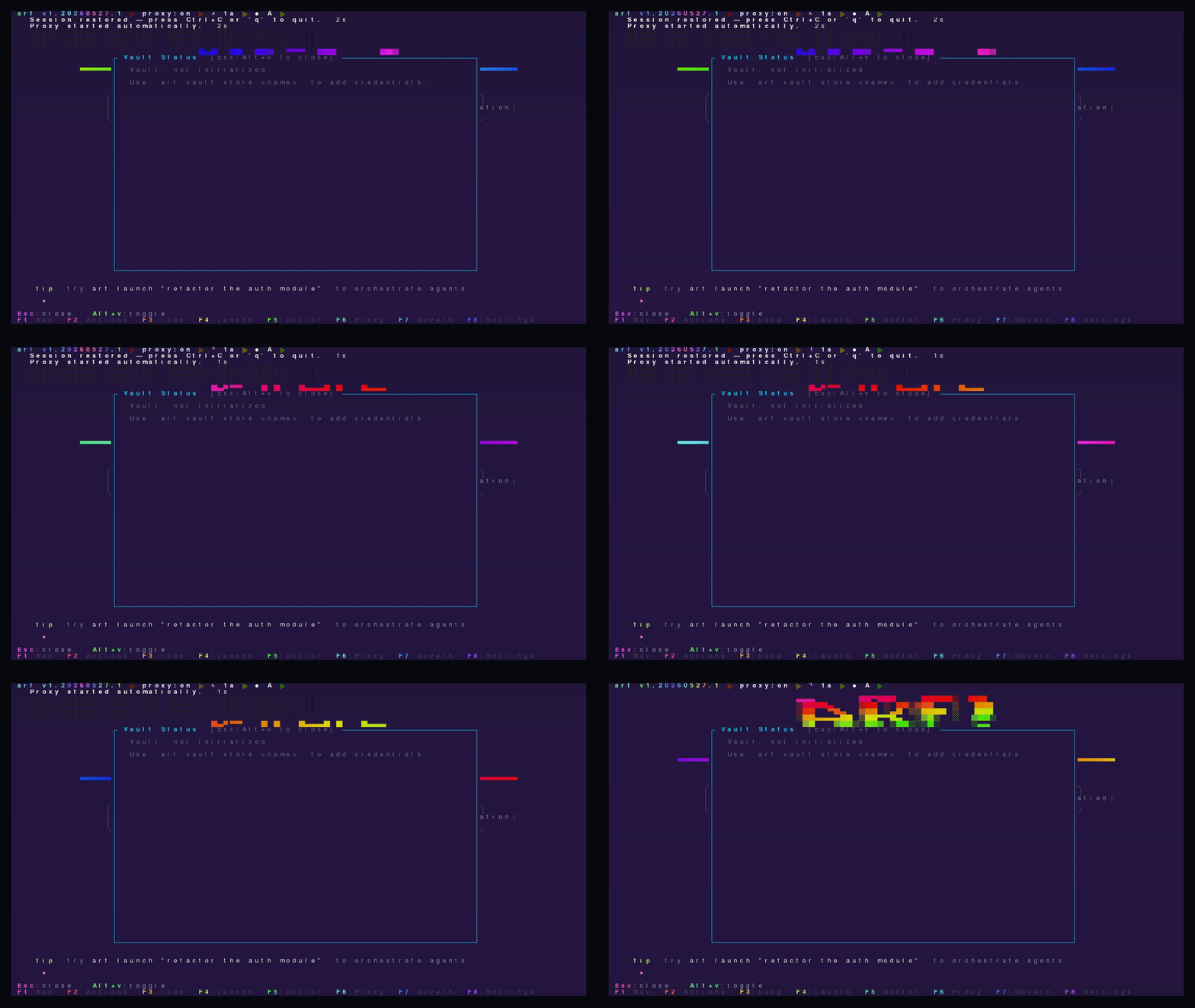
ARF TUI Vault overlay Vault Status Overlay

Checked-out secrets and their expiry. Each secret shows which agent holds it, when the checkout expires, and whether it's been returned. Approve or revoke vault checkouts from this overlay. Access via F2 → Vault.

Branch Detail

Full git log for the selected worktree branch, with ARF session annotations on each commit showing token cost and governance grade.

File History

Per-file change history across agent sessions. Shows every agent that touched the file, what they changed, and the audit record for each change.

Binary History

Hash chain for binary files (images, Blender files, PDFs). Shows size, hash, and commit for each version. Detects unexpected binary mutations.

DAG View

Full Merkle DAG visualization for the current session. Concurrent branches shown as parallel chains, merge nodes shown with multiple parents.

Rogue Agents

Scans for AI CLI processes that are not routed through the ARF proxy. Lists any detected rogue sessions with their PID and estimated API endpoint.

Launch Modal

Start a new agent session: select runner (claude/codex/gemini/antigravity), backend, model, governance pack, and enter a prompt. Accessible via F4 from any screen.

Session List

All sessions in the current project, including completed ones. Each shows call sign, runner, token count, governance grade, and duration. Resume or export from this overlay.

Toast Log

History of all TUI notifications. Toast messages for approvals, denials, circuit trips, and agent completions are stored and searchable here. Accessible via Alt+T.

Conflict Resolver

When multiple agents produce conflicting changes to the same file during a fan-in merge, this overlay shows each version side-by-side for human review and resolution.

Telemetry

Request latency histogram, token throughput, tool call frequency, governance evaluation time, and cost per request. Per-session and aggregate views.

Keyboard Reference

The whole watchdog,
at your fingertips.

Global (any screen)
Ctrl+Right Next screen
Ctrl+Left Previous screen
1–9 Jump to screen by number
F1 Navigation menu (H/N/R/E/W/A/D/B/T/S/P)
F2 Actions menu (launch, kill, toast log…)
F3 Start Loop (run all runners)
F4 Launch Agent modal
F5 Doctor (health check, model scan)
F6 Proxy status (restart, stop)
F7 Governance rules + circuit breakers
F8 Settings
q Quit TUI (proxy keeps running)
Agent View (N)
Select session
Open session sidebar
Tab Switch to prompt input
Enter Submit prompt / expand session
Alt+R Resume previous sessions
Alt+K Kill all running agents
Alt+T View toast history
k Kill selected agent
r Resume selected agent
Rules (R) / Governance (F7)
Navigate rules / circuit breakers
Enter Reset tripped breaker
Space Rule detail view
A Filter: All rules
B Filter: Block rules only
W Filter: Warn rules only
I Filter: Info rules only
/ Search rules
Audit (E)
Navigate DAG
Scroll event list / parent chain
Enter Expand event detail
f Cycle filter (all/gov/proxy/agent/git…)
/ Search events
e Export compliance bundle
Esc Back to event list
Activity (A) / Traffic (T)
/ Search events
f Cycle filter
Enter Expand event detail
e Export events
Scroll
aog Filter: Anthropic / OpenAI / Gemini (traffic only)
Diff (D)
np Next / previous hunk
][ Next / previous file
Scroll
Esc Close / back